A smart refrigerator that loses its WiFi connection after a router change almost always fails for one of four reasons: the new router uses a combined 2.4 GHz and 5 GHz network that the refrigerator cannot properly navigate, the security protocol on the new router has changed to WPA3 which many smart refrigerators do not support, the network name or password has changed requiring the appliance to be re-paired from scratch, or the router has enabled features like band steering or MAC address filtering that block older IoT devices. In most cases, this is a network configuration issue rather than a hardware failure, and it can be resolved through a combination of router settings adjustments and a fresh appliance pairing process without any professional service call.
Why Router Changes Cause Smart Refrigerator WiFi Problems
Naperville homeowners who upgrade to a new router, switch internet providers, or transition to a mesh WiFi system are among the most frequent callers when smart appliance connectivity issues arise. The reason is straightforward: a smart refrigerator stores its network credentials internally, and those credentials are specific to your previous router’s exact configuration, including the network name, password, security protocol, and frequency band. When any of those variables change, the refrigerator’s stored network memory no longer matches what your new router is broadcasting, and the connection attempt fails.
What makes this situation feel more alarming than it actually is in most cases is that the refrigerator continues to cool and function normally as a refrigerator. The smart features, including the companion app, remote temperature control, internal cameras on Family Hub models, and diagnostic alerts, simply go dark. The appliance is not broken. It has lost its network handshake and needs to be re-introduced to the new router environment.
Understanding exactly why this happens, and which specific settings are responsible, puts Naperville homeowners in a strong position to resolve the issue themselves or to accurately describe the problem to a technician if professional help becomes necessary.
The Core Technical Reason: Smart Refrigerators Are 2.4 GHz Only Devices
This is the most important technical fact for any homeowner troubleshooting a smart refrigerator WiFi issue after a router change. Unlike smartphones, laptops, and smart televisions, which can connect to both the 2.4 GHz and 5 GHz bands that modern routers broadcast, virtually every smart refrigerator on the market, including models from Samsung, LG, GE, Whirlpool, and Frigidaire, connects exclusively on the 2.4 GHz band.
The 5 GHz band is faster but has a shorter range and less ability to penetrate walls and metal surfaces. The 2.4 GHz band is slower but reaches further and handles obstructions better. For a large metal appliance like a refrigerator that is typically located at the farthest point in the home from the router, 2.4 GHz is the only practical option.
The problem with newer routers is that many of them use a feature called band steering, which combines both bands under a single network name and automatically directs each device to whichever band the router considers optimal. Since phones and computers strongly prefer 5 GHz for speed, the router learns to steer devices toward 5 GHz. When a smart refrigerator attempts to connect to that combined network, the router may steer it toward the 5 GHz band, which the refrigerator’s WiFi module cannot use. The connection attempt fails, and the refrigerator displays a connection error even though the password being entered is completely correct.
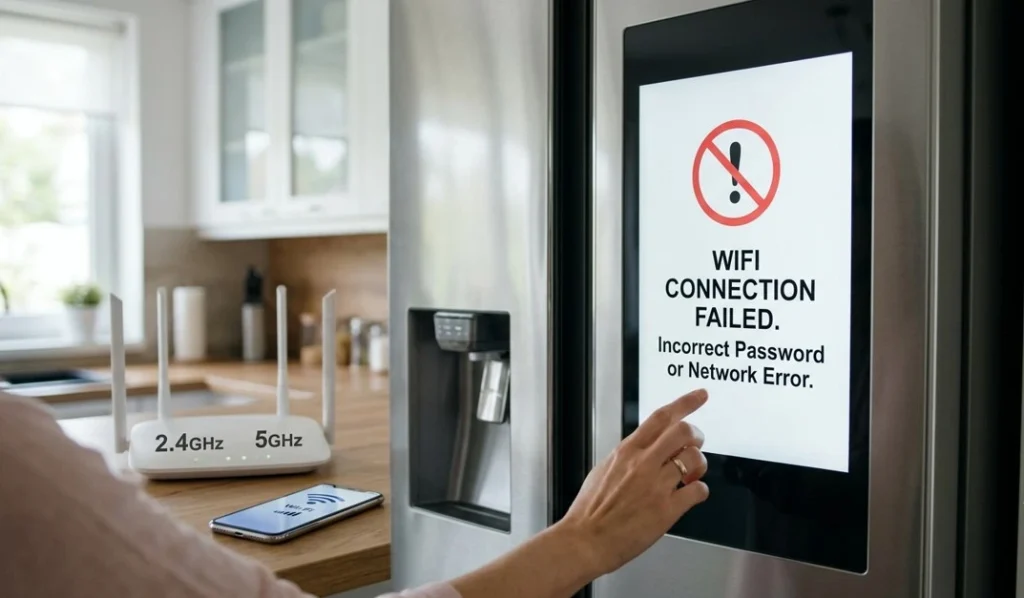
Mesh WiFi systems, which have become common in larger Naperville homes in neighborhoods like White Eagle, Tall Grass, and River Run where square footage can exceed 3,000 to 4,000 feet, create an additional layer of complexity. Many mesh systems use intelligent band management and aggressive roaming features that are designed to optimize performance for smartphones and streaming devices but that behave unpredictably with IoT appliances like smart refrigerators, which have simpler WiFi modules and specific band requirements.
The Five Most Common Causes and What Each Means for Your Fix
Cause 1: New Router Has a Combined 2.4 GHz and 5 GHz Network Under One Name
This is the single most common cause of smart refrigerator WiFi failure after a router change, and it is entirely fixable through your router’s administration settings.
When your old router broadcast two separate networks, perhaps named something like HomeNetwork and HomeNetwork-5G, your refrigerator was previously connected to the 2.4 GHz version with a specific name it could remember. Your new router, broadcasting everything under one merged name, has removed the distinct 2.4 GHz network that the refrigerator knew how to find.
The fix is to log into your router’s administration panel, typically accessed through a web browser using the address printed on the underside of the router, and create a separate 2.4 GHz network with its own dedicated name, something simple and distinct like HomeNetwork-2G. Once that dedicated 2.4 GHz network exists as a visible, separate option, the refrigerator can find and connect to it.
Cause 2: New Router Uses WPA3 Security Instead of WPA2
Newer routers increasingly default to WPA3 encryption, which is more secure than the older WPA2 standard. The problem is that most smart refrigerators manufactured before 2022 were built with WiFi modules designed for WPA2 networks, specifically WPA2-PSK with AES encryption. When these appliances encounter a WPA3-only network, the security handshake fails even if the password being entered is entirely correct.
The solution is to check your router’s security settings and switch from WPA3-only mode to either WPA2-PSK or, for maximum compatibility with a home that includes both newer devices and older smart appliances, a WPA2/WPA3 mixed mode that allows both protocols to operate simultaneously. This does not meaningfully reduce your home network security while enabling older smart appliances to connect reliably.
Cause 3: The Network Name or Password Changed
This cause is more obvious but worth addressing directly. If your new router came with a different default network name and password than your old one, or if you chose a new name and password during setup, the refrigerator is still attempting to connect to credentials that no longer exist on your network. The stored network memory in the appliance must be cleared and the connection must be re-established from scratch.
This requires going into the refrigerator’s settings menu, finding the WiFi or network settings section, selecting the option to forget or delete the current network, and then running through the initial pairing process as though connecting the appliance for the first time. The specific steps for doing this vary by brand, which is covered in detail in the brand-specific section below.
Cause 4: Router Security Features Are Blocking the Refrigerator
Modern routers include several security and performance features that, while beneficial for conventional devices, can inadvertently prevent smart appliances from connecting or maintaining a stable connection.
MAC address filtering, when enabled, creates an approved device list and blocks any device whose hardware address has not been manually added. If your new router has this feature active, your refrigerator’s MAC address needs to be added to the approved list before any connection attempt will succeed. The refrigerator’s MAC address can typically be found in its network settings menu or on a label inside the fresh food compartment.
AP isolation, also called client isolation, prevents devices on the same network from communicating with each other and with cloud services. This feature is occasionally enabled on new routers in a default security configuration and will consistently block smart appliances that depend on cloud communication to function.
Overly restrictive firewall rules or parental controls can also block outbound connections from unfamiliar device types, including smart refrigerators attempting to reach manufacturer servers for initial authentication during the pairing process.
Cause 5: The WiFi Module Needs a Full Power Cycle and Fresh Pairing
Even when the network configuration is correct, the WiFi module inside the refrigerator may retain corrupted credentials or a stale network association from the previous router. This is particularly common with Samsung Family Hub models and LG ThinQ refrigerators, which store network information in the control board’s memory alongside the previous router’s credentials.
A complete power cycle, unplugging the refrigerator for a full two to three minutes rather than simply restarting it, forces the WiFi module to reinitialize and clear its network memory. After the power cycle, running the initial pairing process from scratch through the companion app gives the module a clean starting point without any residual information from the previous connection.
Step-by-Step Fix Process for Naperville Homeowners
Work through these steps in order, since they are arranged from simplest to most involved. Most homeowners resolve the issue at Step 2 or Step 3 without needing to proceed further.
Step 1: Power cycle both the refrigerator and the router. Unplug the refrigerator for two to three minutes, and separately restart your router by unplugging it for thirty seconds and allowing it to fully reboot before plugging the refrigerator back in. This clears stale network associations on both sides and is worth doing before any more involved troubleshooting.
Step 2: Create a dedicated 2.4 GHz network on your router. Log into your router’s administration panel and separate the 2.4 GHz and 5 GHz bands into two distinct networks with different names. Name the 2.4 GHz network something clearly identifiable, disable band steering or smart connect features if your router has them, and set the security protocol to WPA2-PSK (AES) rather than WPA3-only for this network.
Step 3: Forget the old network on the refrigerator and re-pair. In the refrigerator’s settings menu, navigate to the WiFi or network settings and select the option to forget the current network. Then run through the initial setup pairing process using your companion app, making sure your phone is connected to the same 2.4 GHz network you want the refrigerator to use during this process.
Step 4: Check and disable blocking router features. If Step 3 does not produce a successful connection, log into your router’s administration panel and check whether MAC address filtering, AP isolation, or client isolation features are active. Disable them, then attempt the pairing process again.
Step 5: Assign a static IP address for the refrigerator. In your router’s DHCP settings, find your refrigerator’s MAC address in the connected devices list and create a permanent IP reservation for it. This prevents the DHCP lease renewal failures that cause periodic disconnections after an initial successful connection, a problem particularly common with Samsung and LG models that use Realtek WiFi chipsets.
Step 6: Address signal strength. Smart refrigerators are partially shielded by their own stainless steel bodies, which can reduce WiFi signal strength by 10 to 15 dBm compared to a phone at the same location. If your router is more than two rooms away from the kitchen, a WiFi extender or a mesh network node placed in or near the kitchen, not on top of the refrigerator itself, can make a meaningful difference in connection stability.
Brand-Specific Instructions for Common Smart Refrigerator Models
Samsung Family Hub Refrigerators
Samsung Family Hub models connect through the SmartThings app using the Samsung account associated with the appliance. After clearing the network on the refrigerator’s touchscreen under Settings, then All Settings, then Connectivity, then WiFi, the re-pairing process runs through the SmartThings app on your phone. Samsung’s official guidance confirms that the phone must be connected to the same 2.4 GHz network during the pairing process, and that both bands should be separated on the router before attempting reconnection. Full Samsung troubleshooting guidance is available through Samsung’s WiFi reconnection support page for Family Hub models specifically.
GE Profile and GE Appliances WiFi Refrigerators
GE smart refrigerators use the SmartHQ app and require the 2.4 GHz band to be visible as a separate network. If the SmartHQ app cannot locate the home network during setup, GE recommends moving the router temporarily closer to the appliance or adding a WiFi extender. Password re-entry failures on GE models are most often caused by special characters in the network password that the refrigerator’s firmware handles inconsistently, so using a password composed of only letters and numbers for the dedicated 2.4 GHz network eliminates this issue. GE’s SmartHQ WiFi setup troubleshooting page covers the specific indicator light patterns and what each means during the connection attempt.
LG ThinQ Refrigerators
LG smart refrigerators use the ThinQ app and connect exclusively on 2.4 GHz. The WiFi antenna on most LG InstaView models is positioned inside the top hinge cover, which provides better protection from compressor electromagnetic interference but reduces overall range slightly. After a router change, the recommended process is to delete the appliance from the ThinQ app entirely, power cycle the refrigerator, and then add it as a new device from the beginning. LG’s SmartDiagnosis feature within the ThinQ app can sometimes identify whether the connection failure is a network configuration issue or a deeper hardware concern.
Whirlpool and KitchenAid Connected Refrigerators
Whirlpool and KitchenAid smart refrigerators use the Whirlpool app for connectivity management. These models are among those most affected by WPA3-only router configurations, since their WiFi modules were designed for WPA2 networks. After a router change, the pairing process begins by holding the WiFi button on the refrigerator’s control panel until the status light begins flashing, then completing the setup through the Whirlpool app while the phone is connected to the 2.4 GHz band.
When the Problem Is Not the Router: Signs of a Hardware Issue
The troubleshooting steps above resolve the vast majority of post-router-change smart refrigerator connectivity problems. However, a small percentage of cases involve actual hardware failure in the appliance’s WiFi module or control board, and recognizing the difference matters.
Signs that point toward a hardware issue rather than a network configuration problem include the WiFi module not appearing in the refrigerator’s settings menu at all even after a full power cycle, the refrigerator completing the pairing process successfully but dropping offline within minutes regardless of router settings, and the companion app consistently returning a “device not found” error even when other devices on the same network connect without difficulty.
Smart-specific repairs, including WiFi module replacements and connected control board work, cost more than standard appliance repairs because the components involved are proprietary and the diagnostic process requires both appliance expertise and network knowledge. If the troubleshooting steps above have not resolved the issue after a thorough attempt, scheduling a professional diagnostic with a technician experienced in connected appliance repair is the appropriate next step.
The refrigerator repair team at Naperville Appliance Fix handles both standard refrigerator mechanical issues and smart appliance connectivity problems, including WiFi module failures, control board replacements, and post-router-change re-pairing support for all major brands including Samsung, LG, GE, Whirlpool, and KitchenAid.
Preventing Future WiFi Disconnections After Network Changes
Once your smart refrigerator is successfully reconnected, a few simple router settings protect against the periodic disconnections that many homeowners experience even after an initial successful pairing.
Assigning a static IP reservation for the refrigerator in your router’s DHCP settings is the single most effective preventive step. It eliminates the DHCP lease renewal process that is the most common cause of periodic disconnections on Samsung and LG models specifically.
Setting a fixed channel on your 2.4 GHz network rather than allowing the router to select the channel automatically reduces interference from neighboring WiFi networks, which is particularly relevant in Naperville’s denser subdivisions where multiple households’ networks overlap. Fixed channels 1, 6, or 11 are standard recommendations for 2.4 GHz stability.
Avoiding special characters, symbols, and spaces in both the 2.4 GHz network name and password removes a consistent source of authentication failures on smart appliances whose firmware handles non-standard characters inconsistently.
If you plan to change your router again in the future, note that any router change will require repeating the pairing process for the refrigerator. The most efficient approach is to configure the new router with the same 2.4 GHz network name and password as the old one before completing the switch, so the refrigerator reconnects automatically without any manual re-pairing.
The Bottom Line for Naperville Homeowners
A smart refrigerator that loses its WiFi connection after a router change is not broken. In the large majority of cases, the issue traces back to a mismatch between what the new router is broadcasting and what the refrigerator’s WiFi module is designed to connect to, specifically the need for a separate, visible 2.4 GHz network running WPA2 security without band steering or MAC filtering active.
Working through the step-by-step process above, starting with a power cycle, separating the 2.4 GHz band, clearing the old network credentials on the refrigerator, and running a fresh pairing through the companion app, resolves most cases without any professional service call.
For homeowners who have worked through every step and still cannot get the appliance online, or who suspect a deeper hardware issue with the WiFi module or control board, the full appliance repair services at Naperville Appliance Fix include smart appliance diagnostics with upfront pricing and same-day availability across Naperville’s 60540, 60563, 60564, 60565, 60566, and 60567 zip codes.
Naperville Appliance Fix can schedule a smart refrigerator diagnostic and get a clear answer on whether the issue is a network configuration problem or a hardware repair.
Naperville Appliance Fix serves homeowners across zip codes 60540, 60563, 60564, 60565, 60566, and 60567. Call (630) 467-7265 for same-day diagnostic appointments on Samsung, LG, GE, Whirlpool, KitchenAid, and all major smart appliance brands.